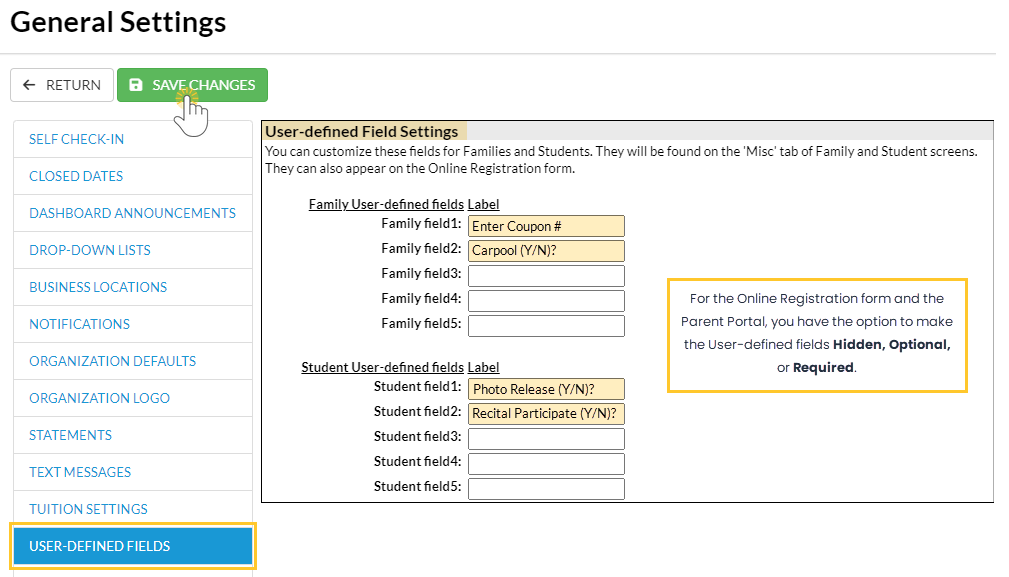
Family and Student User-defined Fields (UDF), 5 of each, are custom fields you create that allow you to capture and store additional important information for your organization. These are a few examples:
- Students' preferred pronouns
- Coupon numbers
- Membership numbers
Create User-Defined Fields
The Family and Student User-defined Fields are created and edited from the Gear (icon) > Settings > General > User-defined Fields (left menu).
Online Registration Form Settings
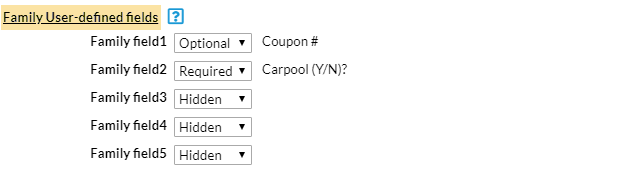
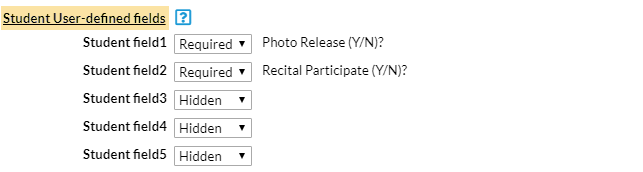
On your Online Registration form, you can set a User-defined Field to:
- Hidden (field doesn't show on the registration form).
- Optional (field shows but the parent can leave it blank).
- Required (parent must provide a response).
These settings are accessed from the Gear (icon) > Settings > Online Registration > Field Options/Labels in the Family Information and Student Information sections.
Parent Portal Settings
In the Parent Portal, you can set a User-defined Field to:
- Hidden (the field will not appear in the portal)
- View Only (the field will be visible in the portal but the parent cannot edit it)
- Can Update - Optional (field shows and the parent has the option to edit it)
- Can Update - Required (parent must complete the field).
These settings are accessed from the Gear (icon) > Settings > Parent Portal > Settings (tab).
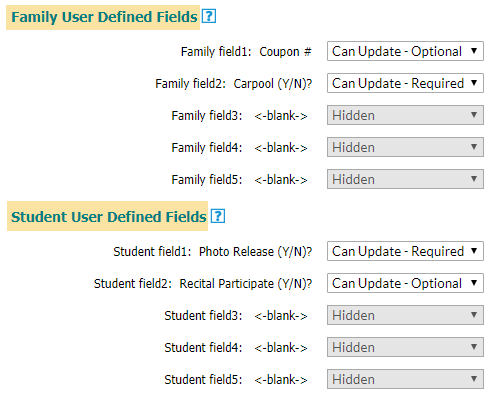
In the Parent Portal, making a User-defined Field required will notify the parent that they need to give you more information. A notification badge will appear in their portal indicating that additional information has been requested. Note: It does not prevent the parent from enrolling their student(s) in classes.
Locate UDF Answers
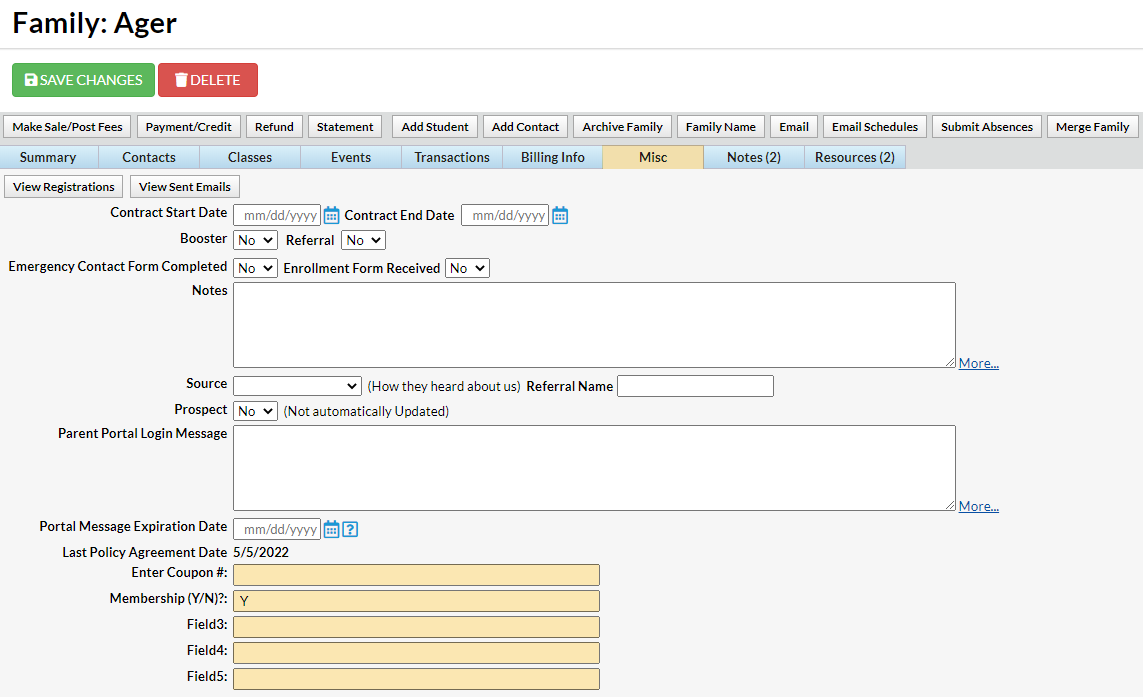
Location in a Family Record - Misc Tab
Answers to the Family User-defined Fields are saved and stored on the Misc tab of the Family record. These fields will also appear in several searches and reports throughout Jackrabbit.
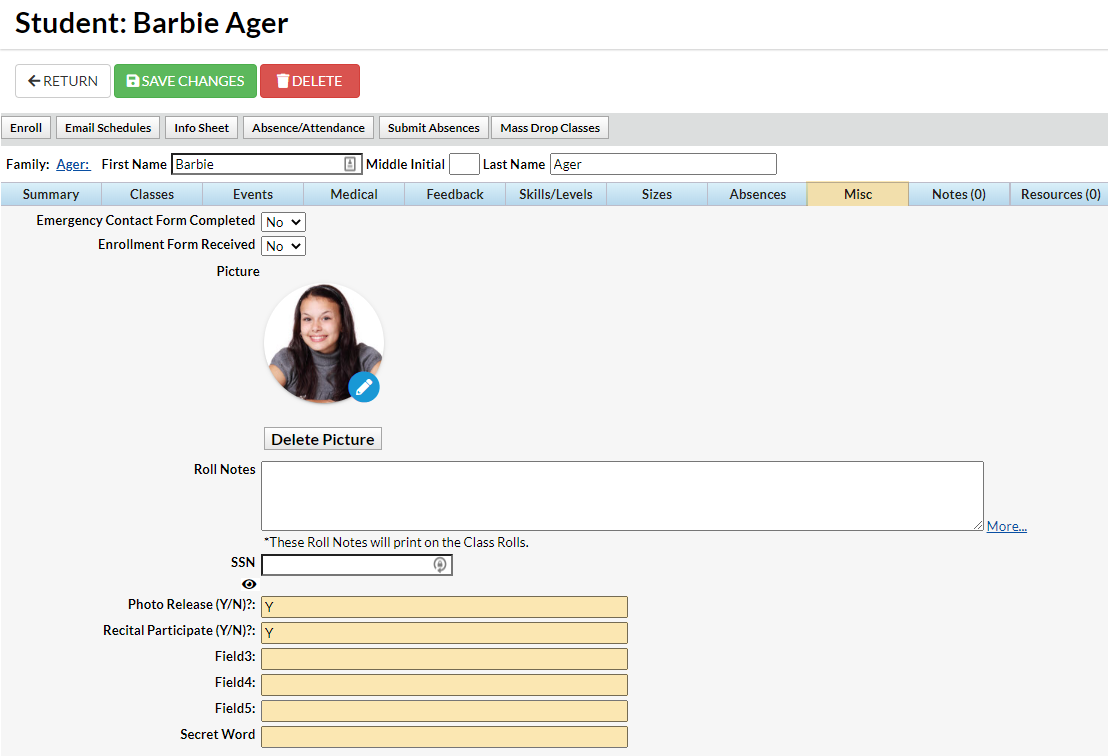
Location in a Student Record - Misc Tab
Report on User-defined Fields
All Families List
Go to the Families (menu) > All Families to report on Family User-defined Fields. Filter for Family User-Defined Fields, enter the information in the selected field, click Apply, and the filtered list will populate on the page.
To display the column with the user-defined field information, use the column menu and select the specific User-defined field column you would like to see on the list.
All Students List
Go to the Students (menu) > All Students to generate a list of Student User-defined Fields. Filter for User-Defined Fields, enter the information in the selected field, click Apply, and the filtered list will populate on the page.
To display the column with the user-defined field information, use the column menuand select the specific User-defined field column you would like to see on the list.
Parent Portal Log Report
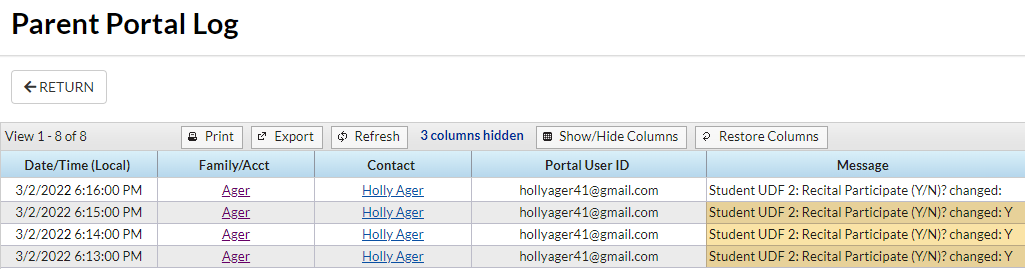
The Parent Portal Log, located in Reports (menu) > Find Reports > Families/Students > Families (tab) can be used to search for updates to User-defined Fields that parents have made in their portals.
From the Filter Option criteria drop-down, select User Defined Field Changes and select a date or date range to view the activity for. Click Submit.
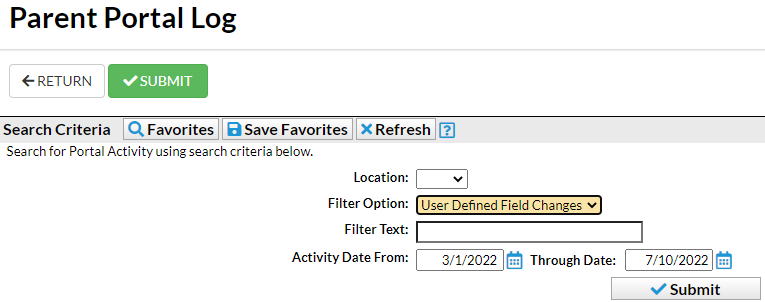
Sample Parent Portal Log Results
Clear Answers in User-defined Fields
A User ID, with the required permissions, can clear Family and Student User-defined Fields. This is helpful when starting a new session that requires updated information.
There are two User ID permissions required:
- In the Families Category of User Permissions, Clear Family User-defined Fields...
- In the Students Category of User Permissions, Clear Student User-defined Fields...
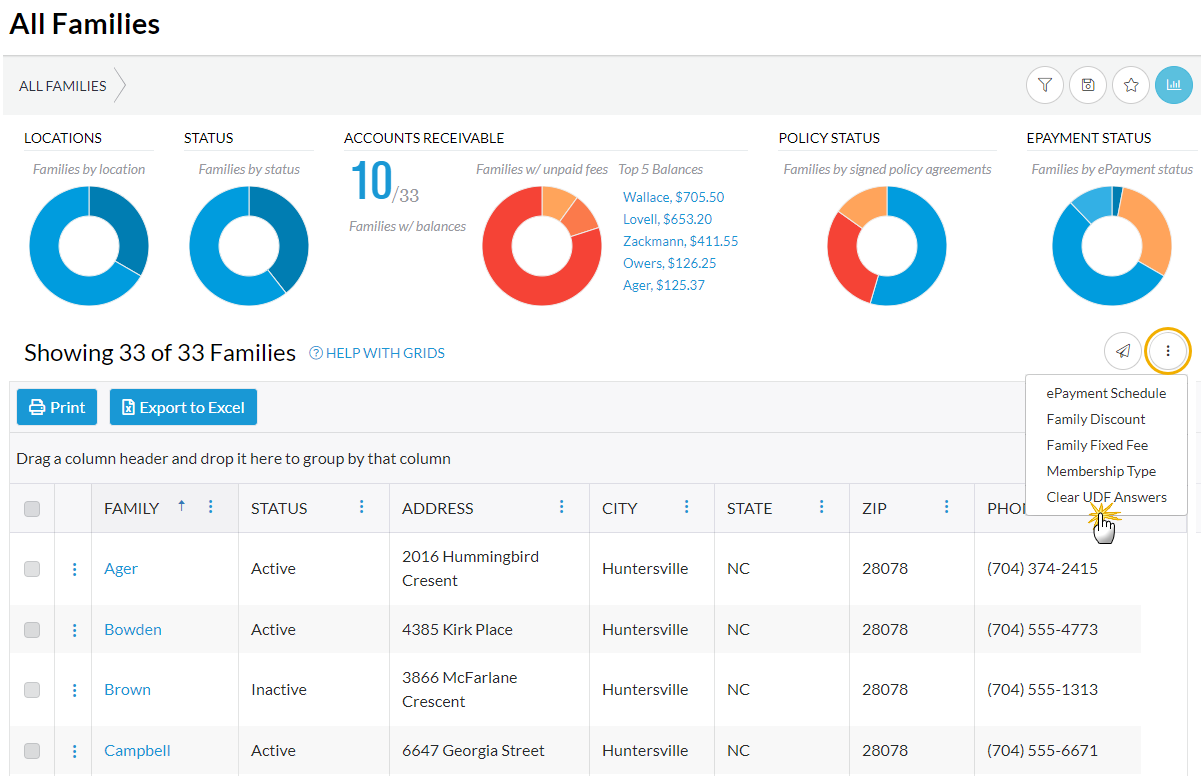
To clear all User-defined fields go to Families (menu) > All Families or Students (menu) > All Students, and leave the 1st column unchecked to select all. Click the mass actions (icon) and select Clear UDF Answers. In the pop-up window, toggle the user-defined fields you want to clear and click Clear.
Note: Use the checkboxes in the 1st column of the grid if you want to select a group of families or students to clear their User-defined field answers only.