Click to expand each section and learn about the settings.
Billing Method
Choose whether to post to classes with a Billing Method of By Class Fee or to classes that are billed By Total Hours. If your classes are a mix, and you use both Billing Methods, they will need to be posted separately.
- The Billing Method for a class is assigned on the Summary tab of the Class record.
- Learn more about Billing Methods.
Post total hours per (By Total Hours only)
Choose whether to calculate total hours fees based on the total hours of all students in the family (Post total hours per Family) or by the total hours of each student separately (Post total hours per Student).
If you opt to total the hours separately for each student, you'll be given the option to add multi-student discounts further in the process in the Multi-Student Discount Settings section.
Example
- Fee Schedule
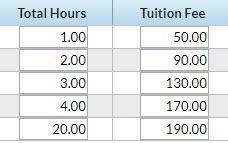
- Student #1 is currently enrolled in two 1 hour classes per week (=2 hours)
- Student #2 is currently enrolled in one 1 hour class per week (1 hour)
Total hours by student:
- Student #1 is charged $90 (fee for 2 hours)
- Student #2 is charged $50 (fee for 1 hour)
- Total family tuition is $140
Total hours by family:
- Total hours taken by both students is 3
- Total family tuition is $130 (fee for 3 hours)
Learn more about the Fee Schedule used for posting tuition by total hours.
Billing Cycle
The Billing Cycle is how often you post tuition fees; it defines the range of days your families are billed for. Note: If you bill By Total Hours, you are limited to one Billing Cycle for those classes, and therefore, the Billing Cycle field in the Post Tuition Fees - Billing Settings is disabled.
- The Billing Cycle for a class is assigned on the Summary tab of the Class record.
- Learn more about Billing Cycles.
Billing Cycle Start Date
From the drop-down, select the start date of the Billing Cycle you are currently billing. The options that appear in the drop-down list depend on the type of Billing Cycle you selected and the day it starts:
- When you use Weekly, Monthly, or Custom Billing Cycles, you must select a billing cycle start date from the drop-down.
- For By Session Date cycles, the Billing Cycle start date field is automatically filled with the first day of the session.
When posting fees immediately (Post Now) your options will be as follows:
| Type of Billing Cycle | Options |
| Weekly | Select from 10 previous cycles or 15 future cycles, including the current cycle. |
| Monthly or Custom | Select from 3 previous cycles or 12 future cycles, including the current cycle. |
| By Session Dates | Select a session from the list. |
When you opt to Post Later, you will only see two cycles to choose from, the current Billing Cycle and the next Billing Cycle.
- The start dates of the Weekly, Monthly, and Custom Billing Cycles are defined in the Tuition Billing Settings under the Gear icon > Settings > Tuition & Discounting)
- The start dates of By Session Date cycles are defined in the Drop-down List Editor for Class Sessions (Gear icon > Settings > General).
Transaction Date
The Transaction date is the date that will be stamped on each tuition fee that is posted in the batch; it is not the date the posting was done.
Example - Fees posted on August 5th with a Transaction date of September 1st will all be stamped with the September 1st date.
When you select the current Billing Cycle, the Transaction date will default to the current date. When previous or future cycles are selected, the Transaction date defaults to the start date of the Billing Cycle.
The Transaction date field is editable and does not impact when your Billing Cycle starts. Changing the Transaction date in this workflow will not change your Billing Cycle start date.
If you have chosen to post these fees at a later date (Post Later) and are creating a recurring task, the Transaction date determines the Transaction date of subsequent postings, e.g., if the 1st of the month is chosen for a monthly billing task, the next time the task runs the Transaction date will be the 1st of the next month. These dates can be customized in the task scheduler. Learn more about Automated Tuition Posting.